Punish Manchester City in Football Manager
Choose your game and team, turn on as many punishments as you like and download the file. Everything is off until you fill it in.
The punishment file should be compatible with our data updates.
Quick download
Every player, staff member and club hates Manchester City (100), all their players are released, all their finances are removed and they're relegated to the National League North.
Or use the form below to fully customise your experience.
Step 1) Where to put Football Manager Databases
Once you've downloaded a Football Manager Database and extracted it you should be left with either a single folder or a single file named either .fmf or .xml on your computer. You're going to need to move these downloaded files into a special location where Football Manager can find it.
Apple: Where to put the Football Manager Databases on Mac
You will need to copy the downloaded files to this location:
/Users/yourname/Library/Application Support/Sports Interactive/Football Manager 2022/editor data
You may find it difficult to find this exact location, to make it easier, use the following instructions:
a) Open Finder
b) Click “Go” from the menubar and select “Go to Folder” (alternatively press Shift+CMD+G)
c) Copy in the following: ~/Library/Application Support/Sports Interactive/
d) Open the “Football Manager 2022” folder
e) Open the “editor data” folder (or created it if it doesn't exist)
f) Move the downloaded files into the ”editor data" folder
Windows: Where to put the Football Manager Databases on Windows
Simply move the downloaded files to the following location:
Documents/Sports Interactive/Football Manager 2022/editor data
What if I don't have a “editor data” folder?
If you don't have a “editor data” folder simply create it 🙂
The downloaded file ends with .zip, .rar, .7z
If you have a file that ends in .zip, .rar or .7z then you'll need to extract the files before installing them. These files are called “archives” and are a way to compress files or folders into a single file for easier downloading but you'll need to open them and get the contents of them before installing.
DO NOT put zip, rar or 7z files in your “editor data” folder, it won't work.
Extract the files first and then put the extracted files into your “editor data” folder. If you're not sure how to extract them, look at these guides for windows or for mac.
Step 2) Start a new Football Manager Career
Now in order to use your downloaded files you'll have to start a new FM Save. Open up FM and click “Start a new game”.
In the top right you should see a dropdown box labelled something like 21.4.0 or 22.0.0 depending on what game version you're using.
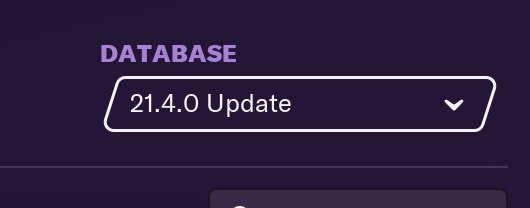
Click this and you should see a pop up showing all the “fmf” and “xml” files you just put in your “editor data” folder.
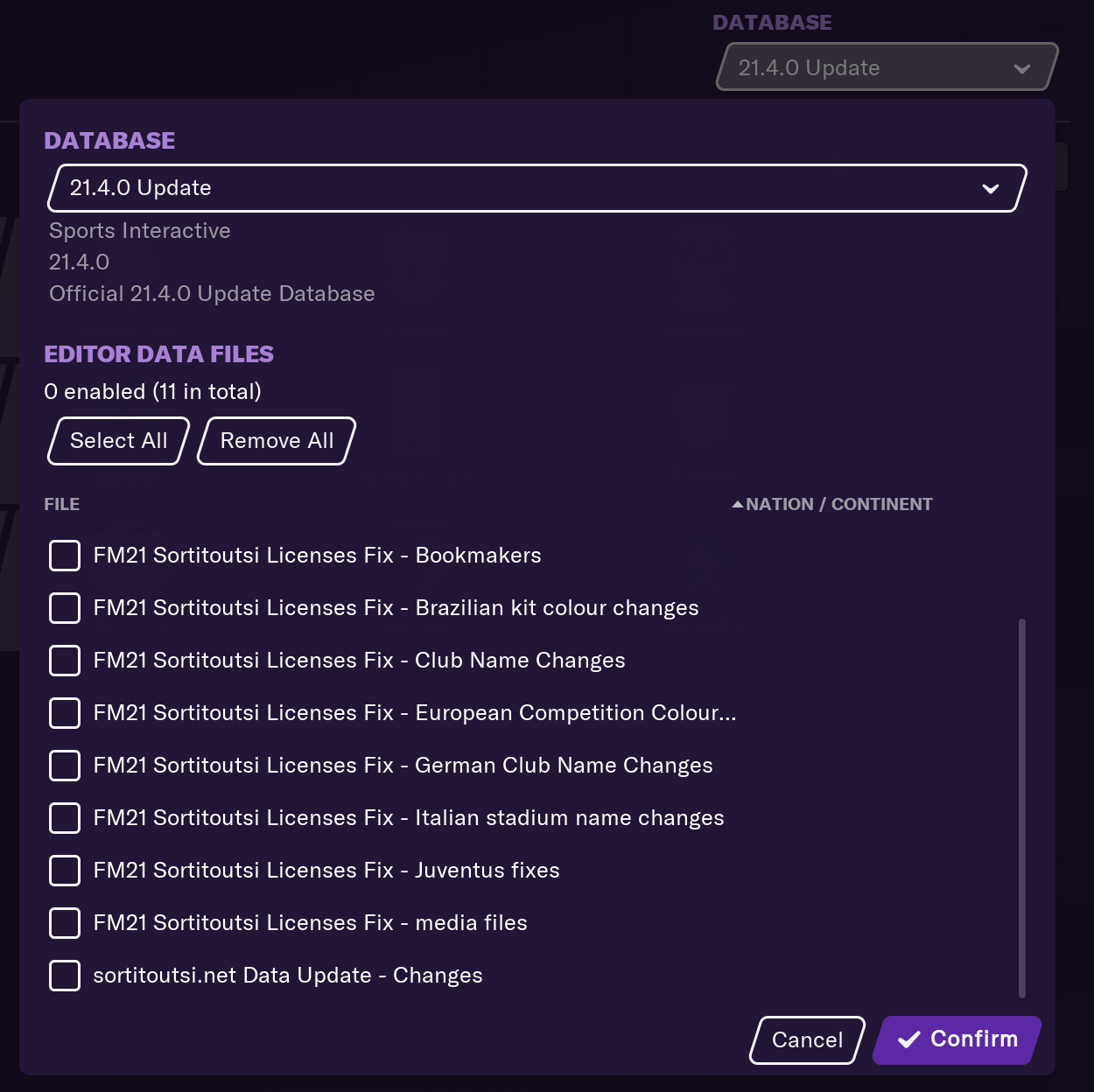
Make sure they're all ticked and then click “confirm”
Now you'll be forced to click “Advanced Setup” in the bottom right and continue creating your Football Manager Career as normal.